D365 F&O batch job stuck in Executing, Waiting or Canceling: causes and fixes
Why a D365 F&O batch job sits in Waiting, Executing or Canceling, what to check for each status, and when Canceling, Abort or a support ticket is the fix.
Applies to Cloud F&O with priority-based batch scheduling10.0.38 and later
In Dynamics 365 finance and operations apps, a job stuck in Waiting can be held by an active period, Max concurrency of -1, busy or reserved threads, throttling, task constraints or maintenance mode; from 10.0.38 a missing batch server isn't a cause. A database refresh puts every job on Withhold until set back to Waiting. Executing or Canceling usually means a task hasn't finished: find it on Batch tasks, then cancel. If it won't stop, Abort; from 10.0.38 that restarts batch servers by default.
Key facts- Microsoft's Refresh database page says a database refresh in Dynamics 365 finance and operations apps sets every batch job to Withhold, so none of them runs until it's set back to Waiting.
- Microsoft says that once priority-based batch scheduling is on, batch groups no longer control which batch servers run a job in cloud F&O. The feature is required for all instances from 10.0.38.
- Setting an F&O batch job to Canceling stops it picking up new tasks, but tasks that had started stay in Canceling until they complete or error out. Canceling doesn't force a task to stop.
- From 10.0.38, Abort on an F&O batch job uses Enhanced batch abort by default, which restarts every batch server running the job's tasks and interrupts other tasks on them. Microsoft lists it as mandatory from 10.0.39.
- With F&O batch concurrency control on (mandatory from 10.0.41), a batch group Max concurrency of -1 pauses every job in the group, though tasks already picked up keep running; 0 means no limit.
- Microsoft's Enable batch retries page says Maximum retries on an F&O batch task retries a failed task whatever the error, including a batch server restart, up to 5. It doesn't apply to runtime tasks.
Your nightly posting run in Dynamics 365 finance and operations apps (F&O) has sat there since 2 AM, and someone wants it running again before lunch. Before anyone reaches for Abort, read the status on the job and on each task, then start from the matching row.
| What you see | What it means | Check first |
|---|---|---|
| Waiting between runs of a recurring job | Normal. Recurring jobs return to Waiting after every run, failed or not | The next scheduled start |
| Waiting well past its start time | The scheduler hasn’t picked up a task yet | Active period, the batch group’s Max concurrency, free threads, task constraints (Waiting causes) |
| Withhold | Stopped. The scheduler ignores the job | Was the environment refreshed recently? (the refresh trap) |
| Executing for hours | Usually, at least one task hasn’t finished, and the job can’t end until every running task does | Task statuses on the Batch tasks FastTab (Executing causes) |
| Canceling that won’t clear | Someone asked to cancel, and a started task hasn’t completed or errored out | Which task is still Canceling, and what it’s doing (the escalation ladder) |
What do Waiting, Executing and Canceling actually mean?
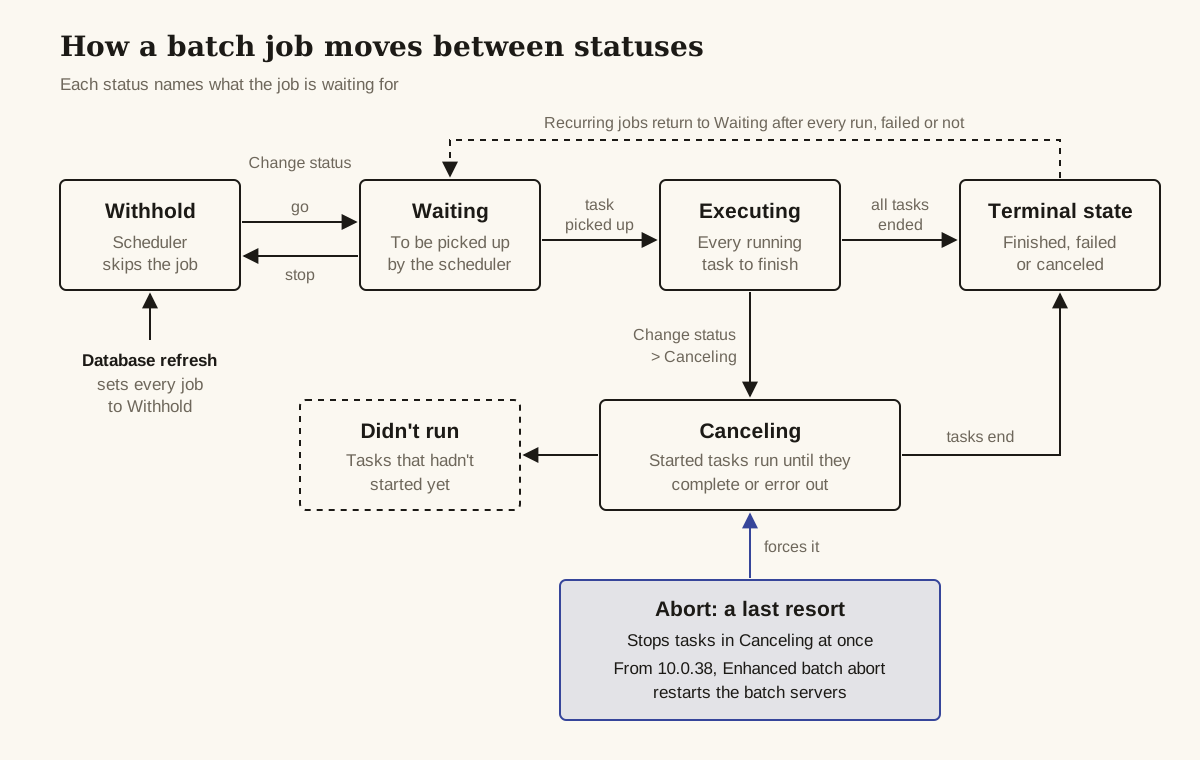
Each F&O batch job status names what the job is waiting for. Waiting: to be picked up by the scheduler. Executing: every running task to finish. Canceling: started tasks to complete or error out after someone asked to cancel. Withhold is different, because the scheduler skips the job altogether. The Create a batch job page calls Waiting and Withhold “go” and “stop”, and they’re the two values that page lists for adjusting a job’s status.
Waiting isn’t automatically a problem. A recurring job goes back to Waiting after each run, succeeded or failed, as long as recurrence is still valid (runs left, or an end date not yet passed). Each batch server also checks for free threads only once a minute, so a ready task can sit for up to a minute before anything happens.
Executing is about tasks, not the job, and that has a monitoring catch. KA-26063 notes that when some tasks complete and others hit errors or delays, telemetry may not show the job as stuck at all.
Canceling is the status you set to cancel a running job. From that point:
- The job stops picking up new tasks.
- Tasks that hadn’t started change to Didn’t run.
- Tasks that had started change to Canceling and stay there until they terminate gracefully, meaning they complete or error out.
So a job stuck in Canceling has a task that is still working, or still blocked. Canceling asks; it doesn’t force anything.
Labels vary: Learn pages mix Didn’t run and “Not Run”, “Canceled” and “Cancelled”, “Ended” and “Finished” for what look like the same states, and several Microsoft knowledge articles write “Cancelling”. We follow Learn’s Cancel a running batch job page.
How does the batch scheduler decide what runs next?
From 10.0.38, where priority-based batch scheduling is required, the F&O batch scheduler picks tasks by priority-weighted probability from a fixed pool of threads, and batch groups set priority and concurrency rather than tying jobs to servers. Six things decide whether a waiting task gets a thread.
Capacity. Total batch capacity is batch servers multiplied by threads per server. Your user licenses set the total, and System administration > Setup > Server configuration shows it. With priority-based scheduling, autoscaling keeps the total thread count constant across servers (8 threads per server by default, 16 at most), and once autoscaling is on you can’t set the thread count by hand. Only Tier-4 and Tier-5 sandboxes can raise capacity; Microsoft says Tier-2 and Tier-3 can’t.
Priority. Each batch group carries a Scheduling priority (Low, Normal, High, Critical or Reserved capacity), set at System administration > Setup > Batch group, and a job can override it. Priorities are weights, not a queue: Learn gives Low 5%, Normal 10%, High 15%, Critical 30% and Reserved capacity 40% plus its dedicated threads, as the probability that a task is picked. A Critical job can still lose a pick to a Normal one.
Reserved capacity. The Batch reserved capacity level (on the Batch global settings tab of System administration > Setup > System parameters) dedicates 10%, 15% or 25% of all batch threads to Reserved capacity jobs. No other priority can use those threads, even when they’re idle: in Learn’s example, 120 threads at the High level leave 30 idle if no reserved work is queued.
Throttling. Microsoft’s Batch processing and batch servers page says that by default each batch server limits a batch class to an average of 60 task executions per minute; beyond that, new tasks of the class are held for another minute unless nothing unthrottled is waiting. Separately, the platform delays new batch tasks when SQL database transaction units (DTUs), CPU or memory approach their limits.
Max concurrency. This batch group field caps how many tasks of each job in the group run at once. It applies per job, not across the group. 0 means no limit; -1 pauses every job in the group, though tasks already picked up keep running. According to Learn’s priority-based scheduling page, batch concurrency control was a preview in 10.0.34, generally available in 10.0.38 and is mandatory from 10.0.41.
Constraints. A task with a constraint (on its Constraints tab: Task ID, Expected status, condition All or Any) keeps waiting while its predecessor runs, even when threads are free.
The batch server isn’t on that list. Microsoft states that once priority-based scheduling is on, “batch groups no longer control associations with batch servers”. The feature was available from 10.0.25, on by default for new environments from 10.0.28 and for existing ones from 10.0.36, and required for all instances from 10.0.38 (platform update 62).
Why is my batch job stuck in Waiting?
A job that stays in Waiting past its start time is held by something the scheduler checks before it hands out a thread: an active period, the group’s concurrency setting, capacity, throttling or a constraint. Withhold is a separate case: the scheduler never looks at the job. The table runs from the quickest check to the slowest.
| Cause | How to confirm | Fix |
|---|---|---|
| Job is on Withhold (every job is, after a database refresh) | Status column on System administration > Inquiries > Batch jobs | Batch job > Functions > Change status > Waiting, for jobs this environment should run |
| Outside its active period | Job’s Active period field (via Edit on the Batch jobs page) against System administration > Setup > Active periods for batch jobs | Change or clear the period |
| Max concurrency of -1 or a low limit | System administration > Setup > Batch group | Set 0 for no limit, or a limit below the total thread count |
| Threads busy, or held as reserved capacity | Server configuration thread count; Batch reserved capacity level in system parameters | Move competing jobs to a lower priority, or lower the reserved level |
| Throttling | Batch throttling telemetry, if enabled (below) | Spread task creation; avoid queuing large task volumes during business hours |
| Unmet task constraint | Predecessor’s status against the dependent task’s Expected status | Fix or rerun the predecessor |
| Maintenance mode on | Environment state | Turn maintenance mode off when the maintenance is done |
| Legacy: batch group with no server | Only on environments without priority-based scheduling | Assign a server; not applicable from 10.0.38 |
The refresh trap. Microsoft’s Refresh database page says a refresh sets every batch job to Withhold, because enabled jobs could send invalid integration messages from the copy, and removes environment-specific records including BatchServerConfig and BatchServerGroup. It also turns off maintenance mode settings and removes business event endpoints. Don’t flip everything back to Waiting in bulk; review the integration and outbound jobs first. If you can’t find Change status, look in both places Learn shows it: under Batch job > Functions and as its own Action Pane button.
Active periods have existed since platform update 21. No Microsoft page we checked says which status a job shows while it waits outside its period, so don’t expect a distinct label.
Reserved capacity is easy to set and forget. A Project Operations knowledge article, KA-24051, uses deprioritized jobs and the reserved capacity level to push one invoicing job ahead of everything else. Leave that in place and every other priority competes for what’s left.
Maintenance mode leaves only one interactive and one batch Application Object Server (AOS) available, so an environment with several batch servers runs batch on one of them while it’s on. On a unified developer environment, maintenance mode is the Administration mode toggle in the Power Platform admin center. On a developer VM, the dynamicsinsights blog reported in April 2024 that the batch management service wouldn’t start at all while maintenance mode was on, and turning it off fixed it. That’s a community report, not documented behavior.
Why is my batch job stuck in Executing or Canceling?
A job stuck in Executing or Canceling usually has at least one task that hasn’t finished (the exception, every task done but the job still Executing, is a support ticket), and Microsoft’s support articles trace that to slow or blocked SQL, too many tasks queued at once, or a server restart mid-run. Open the job’s Batch tasks FastTab and find the task that’s still Executing or Canceling; everything else follows from which task it is.
| Cause | What Microsoft’s articles say | First move |
|---|---|---|
| Long-running or deadlocked SQL, often in custom code | KA-24750 calls Canceling transient and often tied to long-running queries. KA-26137 ties stuck trade agreement journal posting to slow SQL in custom extensions on PRICEDISCADMTRANS and PRICEDISCADMTABLE, with jobs running at the same priority. KA-26081 blames custom queries, high CPU and wrong date filters for hanging recognition jobs | Find the query; abort, then optimize it (KA-26137) |
| Many tasks queued at the same time | KA-26063 names it as a cause of firming jobs stuck in Executing | Enhanced abort, then rerun; ticket if it recurs |
| A batch server or AOS restart during the run | KA-26063 again, for multi-threaded firming | Rerun; add retries so the next restart doesn’t strand it |
| Every task done, job still Executing | KA-25271 routes this to Microsoft’s batch team for root-cause analysis | Support ticket |
Restarts are routine. Learn lists four reasons batch servers restart: maintenance windows for patching, crashes caused by running jobs, infrastructure failover, and someone using Enhanced batch abort, which may be another team’s abort on a server your tasks shared. A restart clears runtime tasks (the in-memory child tasks a controller creates). The platform retries them only for SQL transient connection errors, and only when the class is marked retryable. KA-26060 describes the related symptom: a job that fails with no log output because the batch server restarted just as the job hit an error. Its fix is batch retries.
Where the evidence is. Three places, each with a gap:
- Batch job history depends on the job’s Save Jobs to History setting (Always, Errors Only or Never). From 10.0.39, jobs with more than 5,000 tasks keep only the first 2,500 in history.
- If Microsoft Support has enabled the batch history logging options feature flight, the Recommended option is the default, and with it
BATCHHISTORYstores the info log and parameters as NULL. The current run’s info log still shows on Batch jobs; old runs won’t have one. - Batch telemetry in Application Insights (from builds of 10.0.44 and 10.0.45) includes Batch throttling (CPU, memory, SQL DTU), Batch failure and Batch threads signals. Batch job occurrence start and Batch job occurrence completed came later, in 10.0.50 builds, backported to builds of 10.0.48 and 10.0.49. The flights are on by default; if you don’t see them, Microsoft says to contact support.
Finding the blocking statement itself is a SQL performance job, not a batch one.
How do you unstick a batch job safely?
To unstick an F&O batch job, go from least to most disruptive and stop at the first step that works: find the running task, change the status to Canceling, Abort, restart the AOS, then open a support ticket. Each step past Canceling trades risk for speed.
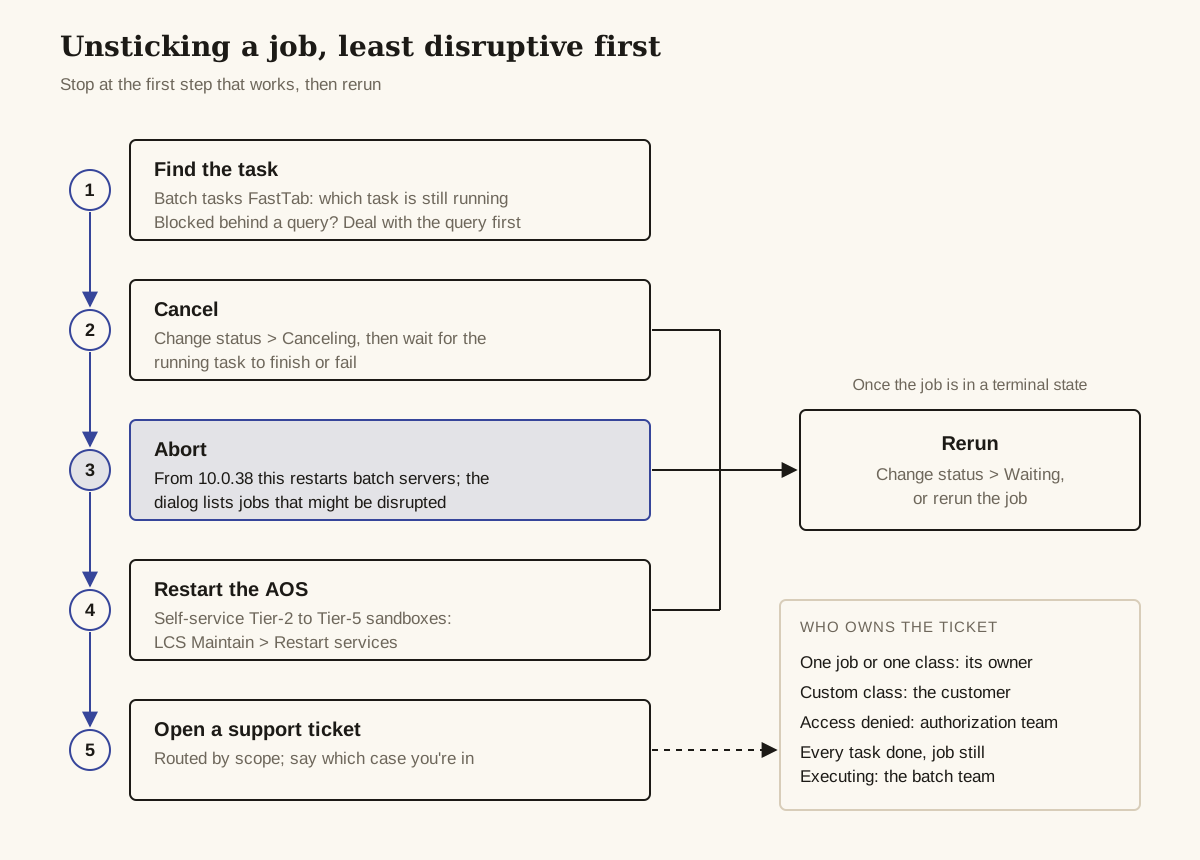
- Find the task. On the Batch tasks FastTab, identify which task is still running and what class it runs. If it’s blocked behind a query, deal with the query first.
- Cancel. On System administration > Inquiries > Batch jobs, select the job, open Change status, choose Canceling and select OK. Then wait for the running task to finish or fail.
- Abort. If a task won’t terminate gracefully, a system administrator or batch job manager can select Abort on the Batch tasks FastTab and confirm. From 10.0.38 this is Enhanced batch abort by default, which restarts batch servers.
- Restart the AOS. For a self-service Tier-2 to Tier-5 sandbox, Lifecycle Services (LCS) has Maintain > Restart services; the Finance and operations apps service includes batch. A project owner, organization admin or environment manager can run it. Nothing we found covers the production equivalent, or for environments that have moved to the Power Platform admin center.
- Open a support ticket, routed as below.
- Rerun. Once the job is in a terminal state, set it back to Waiting with Change status, or rerun it.
| Action | What it stops | What it costs | Version |
|---|---|---|---|
| Change status > Canceling | New tasks; started tasks only when they end on their own | Time. Can’t be used on system jobs | All |
| Abort (classic) | Tasks in Canceling, immediately | Microsoft: “Aborting a running process is inherently unsafe.” Possible orphaned or incomplete data. Can’t break an unmanaged wait such as a SQL deadlock or a Data import/export framework (DIXF) task; those abort only once the wait ends | Before 10.0.38 by default; on 10.0.38 only if Enhanced batch abort is turned off |
| Enhanced batch abort | The job’s tasks, by restarting every batch server running them | Interrupts other jobs’ tasks on those servers. The Abort batch job dialog lists jobs that might be disrupted. Servers take no new tasks for up to 15 minutes (drain added in 10.0.31), then restart | Default 10.0.38, mandatory 10.0.39 |
| AOS restart (Restart services) | The service that runs X++ and batch | Everything running in that service, not just your job | Self-service sandboxes via LCS |
Microsoft doesn’t agree with itself on the order. KA-24750, for Canceling, says restart the AOS first, then use enhanced abort, then raise a ticket. KA-26063, for Executing, goes straight to enhanced abort and a rerun. Our view: on a shared production environment, an enhanced abort whose blast radius you can see (the dialog lists the affected jobs) is easier to justify than an AOS restart whose blast radius you can’t.
Who owns the ticket. Microsoft’s knowledge articles route it by scope. A problem in a single job, or in one class across several jobs, belongs to the team that owns that job, and a custom class is the customer’s to investigate. Access-denied errors go to the authorization team, not batch. Only a job that still shows Executing after every task has completed goes to the batch team (KA-25271). Say which case you’re in when you open the ticket.
Which settings stop it happening again?
To stop F&O batch jobs getting stuck again, spread the batch group priorities, cap bulk jobs, set Maximum retries and get alerted when a job starts but doesn’t finish. Most stuck jobs come back, because the cause is either competition for threads or a task that can’t survive a restart, so fix the one you have.
Spread the priorities. Learn’s guidance, excluding Reserved capacity: roughly 10–50% of jobs at Low, 15–35% Normal, 15–35% High and 10–30% Critical. Don’t put everything on High or Critical. KA-26137’s fix for trade agreement deadlocks includes giving jobs different priorities, and Learn recommends more than one batch group so jobs can sit at different priorities.
Cap bulk jobs, and keep them out of business hours. A low-priority bulk job with a Max concurrency limit can’t take every thread. The limit does nothing if it’s higher than the total thread count, and Learn says not to use it for jobs with more than 5,000 concurrent ready tasks. KA-25271 lists generating large numbers of tasks during business hours as a throttling cause.
Set Maximum retries. Microsoft’s Enable batch retries page says Maximum retries (on Batch task details, General tab) retries a failed task whatever the error, including a batch server restart. The ceiling is 5. It doesn’t apply to runtime tasks.
Keep history useful. For jobs with many tasks, Learn says to set Save Jobs to History to Errors Only or Never. Errors Only still keeps the runs that failed; Never keeps nothing.
Get told before the business notices. Alerts on the batch job (on the Action Pane under Batch job) fire when the job ends, errors or is canceled. The batch business events Batch job started, Batch job finished, Batch job failed and Batch job cancelled are configured on the Business events tab of the Batch jobs page. Batch job failed is on by default; started and finished are off, and Microsoft suggests the pair for spotting long-running jobs: a start with no finish is your stuck job. Activate them for all legal entities.
Requeue failures automatically, with a cap. From 10.0.22, the Batch Open Data Protocol (OData) action SetBatchJobToWaiting moves a failed, finished or canceled job back to Waiting: POST to https://<org url>/data/BatchJobs/Microsoft.Dynamics.DataEntities.SetBatchJobToWaiting with a body of {"batchJobId":<BatchJobId>}. Wire it to the Batch job failed event and stop after five attempts, as Microsoft recommends, or a job that always fails is requeued forever. It’s a requeue tool, not an unstick tool: Learn describes it for jobs in a terminal state (one sentence also lists “started” without explaining it), and we found nothing documenting it for a job still Executing or Canceling.
Where this bites in X++
How an X++ batch class is written decides how painful a stuck job is to recover. Learn’s batch best practices describe the shape: tasks that can run twice without harm, a retry count above zero, work split so each task finishes in 10 minutes or less, and SQL transactions kept short so they don’t block other work.
Opt in to SQL transient retries. From 10.0.18, a controller can implement the BatchRetryable interface, whose single method isRetryable returns a boolean. Learn’s sample marks the method with [Wrappable(true), Replaceable(true)]:
public class DWOpenOrderSyncController extends SysOperationServiceController implements BatchRetryable
{
    [Wrappable(true), Replaceable(true)] // loosen or tighten to suit your extensibility needs
    public boolean isRetryable()
    {
        return true;
    }
}
Instead of BatchRetryable, a controller can call this.batchInfo().parmIdempotent(true); Idempotent is false by default. An administrator can override isRetryable at System administration > Setup > Batch class configuration overrides with Is Retryable, and that setting beats the code.
Rethrow, don’t translate. The platform retries only if the exception leaving the class is TransientSqlConnectionError, or an exception that wraps one. Catch it and throw Exception::Error, and the retry never happens:
try
{
    // one unit of work
}
catch (Exception::TransientSqlConnectionError)
{
    throw; // same exception, or the platform won't retry
}
These retries are separate from Maximum retries. The platform waits 5 seconds, then 8, 16, 32 and so on, and stops once the interval reaches five minutes.
Make a rerun harmless. A retried task starts again from the top, so it has to skip the work it already did, which is what Learn means by idempotent. Our suggestion, not a Microsoft sample: select only rows still in their unprocessed status, and set the processed status in the same short transaction as the work on each row. One transaction per row also keeps locks brief, and small tasks limit what a restart or abort throws away.
Plan for cancellation. A long-running task holds the whole job in Canceling until it ends. Microsoft’s 10.0.39 platform release notes list a BatchHeader method named isCurrentBatchTaskBeingCancelled that batch classes can use to detect a cancellation request and return early. That one table row is the only Microsoft text on it we found, with no signature or sample, so this article doesn’t show a call.
Multi-threaded jobs need a controller that watches. Because a restart clears runtime tasks and the platform retries them only on SQL transient errors, Learn’s answer is a static controller task that stays alive, checks its runtime children (its example uses a 15-second loop), queues a replacement for any that fail, and caps retries at around five, tracked in a table or in the task caption. A controller that queues children and exits leaves nothing to recover them.
Claim records before processing them. Docentric’s post on deadlocks and lost records covers the multi-task version of this problem: parallel jobs grabbing the same rows deadlock, and a crash leaves rows marked in-processing that no job will ever pick up again. Their pattern stamps each claimed row with a processor GUID and the claiming session, and a cleanup step resets rows whose session is no longer active before the next claim.
When shouldn’t you reach for Abort?
Don’t abort an F&O batch job until you know what its running task is doing. Abort is the right call when a task is causing other problems and won’t stop; it’s the wrong call in these cases:
- The task is writing data you can’t easily repair. Abort can leave orphaned or incomplete data, and a half-posted journal is worse than a slow one.
- The task is in a SQL deadlock or a DIXF wait, and classic Abort is what you have (Enhanced batch abort off, possible only before 10.0.39). Classic Abort won’t stop it until the wait ends anyway; find what is blocking the task first.
- Other teams’ jobs share the servers. Enhanced batch abort (default from 10.0.38, mandatory from 10.0.39) restarts every batch server running the job’s tasks. Read the list in the Abort batch job dialog before you select Yes, and in production, do it outside business hours if you can.
- It’s a system job. You can’t cancel those.
- The job is merely Waiting. Nothing is running, so there’s nothing to abort. Go back to the Waiting causes.
If a job ends up aborted more than once, the abort isn’t the fix. Look at the class, its task size and its queries, or hand it to the team that owns it.
Questions people ask
What's the difference between Canceling and Abort for a batch job?
Changing the status to Canceling is graceful: the job stops picking up new tasks and waits for started tasks to complete or error out. Abort forces the tasks in Canceling to stop, which Microsoft calls inherently unsafe because it can leave orphaned or incomplete data. Classic Abort can't break a SQL deadlock or DIXF wait; from 10.0.38, Abort uses Enhanced batch abort by default, which restarts the batch servers running the job's tasks.
Does a batch group still need a batch server assigned?
Not in cloud F&O from 10.0.38. Microsoft says that once priority-based scheduling is on, batch groups no longer control which servers run a job, and the feature is required from 10.0.38. Advice to assign a server to the group comes from Dynamics AX-era and pre-10.0.38 F&O posts.
Why are all my batch jobs on Withhold after a database refresh?
Microsoft's Refresh database page says a refresh sets every batch job to Withhold, because jobs left enabled in the copy could send invalid integration messages. Review the jobs and set the ones this environment should run back to Waiting with Change status.
Will Enhanced batch abort stop other people's batch jobs?
It can. With the feature on (the default from 10.0.38), Abort restarts every batch server that is running tasks of the job, and other tasks on those servers are interrupted. The Abort batch job dialog lists the jobs that might be disrupted, and servers drain for up to 15 minutes first.
Can I turn off Enhanced batch abort?
Not by yourself on 10.0.39 or later. Microsoft lists the feature as mandatory from 10.0.39, and Feature management defines mandatory features as ones you can't disable without contacting Microsoft. The same Learn page also says to disable it in Feature management; we read that as applying to versions before 10.0.39.
Sources and further reading
- Priority-based batch schedulingMicrosoft Learn
- Batch processing and batch serversMicrosoft Learn
- Batch processing overviewMicrosoft Learn
- Batch capacityMicrosoft Learn
- Enable batch retriesMicrosoft Learn
- Create a batch jobMicrosoft Learn
- Active batch periodsMicrosoft Learn
- Batch OData APIMicrosoft Learn
- Refresh databaseMicrosoft Learn
- Maintenance modeMicrosoft Learn
- Available telemetry (batch telemetry)Microsoft Learn
- Batch history logging optionsMicrosoft Learn
- Batch business eventsMicrosoft Learn
- Restart environment servicesMicrosoft Learn
What changed
First published . No changes since.
Was this page helpful?